
Your first case
A case is one investigation, across as many devices as it involves. It is a folder on your disk holding the case database, the search index and anything you export – the evidence itself stays where it is and is never copied or changed.
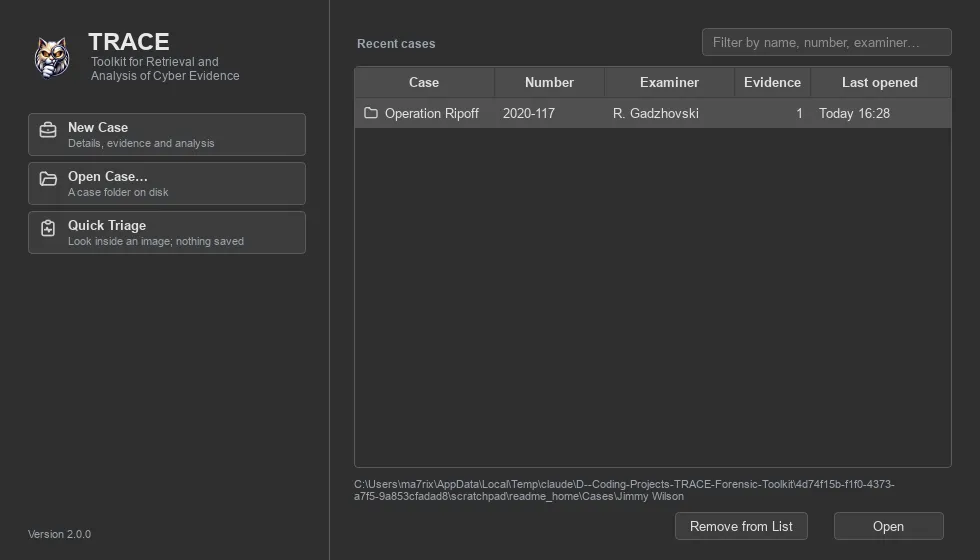
Create the case
Section titled “Create the case”-
Details. On the welcome screen choose New Case. Give the case a name, number, examiner and description, and pick where its folder goes.
-
Evidence. Add disk images, logical images, folders or a live disk. Each item is opened on a background thread as you add it, and TRACE shows what it found: the format and size, the partition layout (MBR · NTFS ×2), encrypted volumes, file systems it can see, and any hashes the image stores. Later segments (
.E02,.002,.ad2) are picked up with the first.Custody fields – exhibit number, description, acquired by, acquired on – are filled in from the E01 or L01 header where it has them, marked from image header, for you to confirm.
-
Modules. Choose what to run: a profile – Quick, Standard, Full – or Custom. Each module shows its cost, and anything that cannot run on this evidence says why.
-
Review, then Create. Nothing is written to disk before this step; if creation fails, the folder it started is removed.
While it works
Section titled “While it works”The modules run as jobs in the status bar, one after another, so two readers never compete for the same image. Verification runs in its own lane beside them. You can browse the evidence the whole time – long work runs in a separate process, so the window stays responsive.
Every job can be cancelled and keeps what it found. Carving can be resumed later from where it stopped.
Review the results
Section titled “Review the results”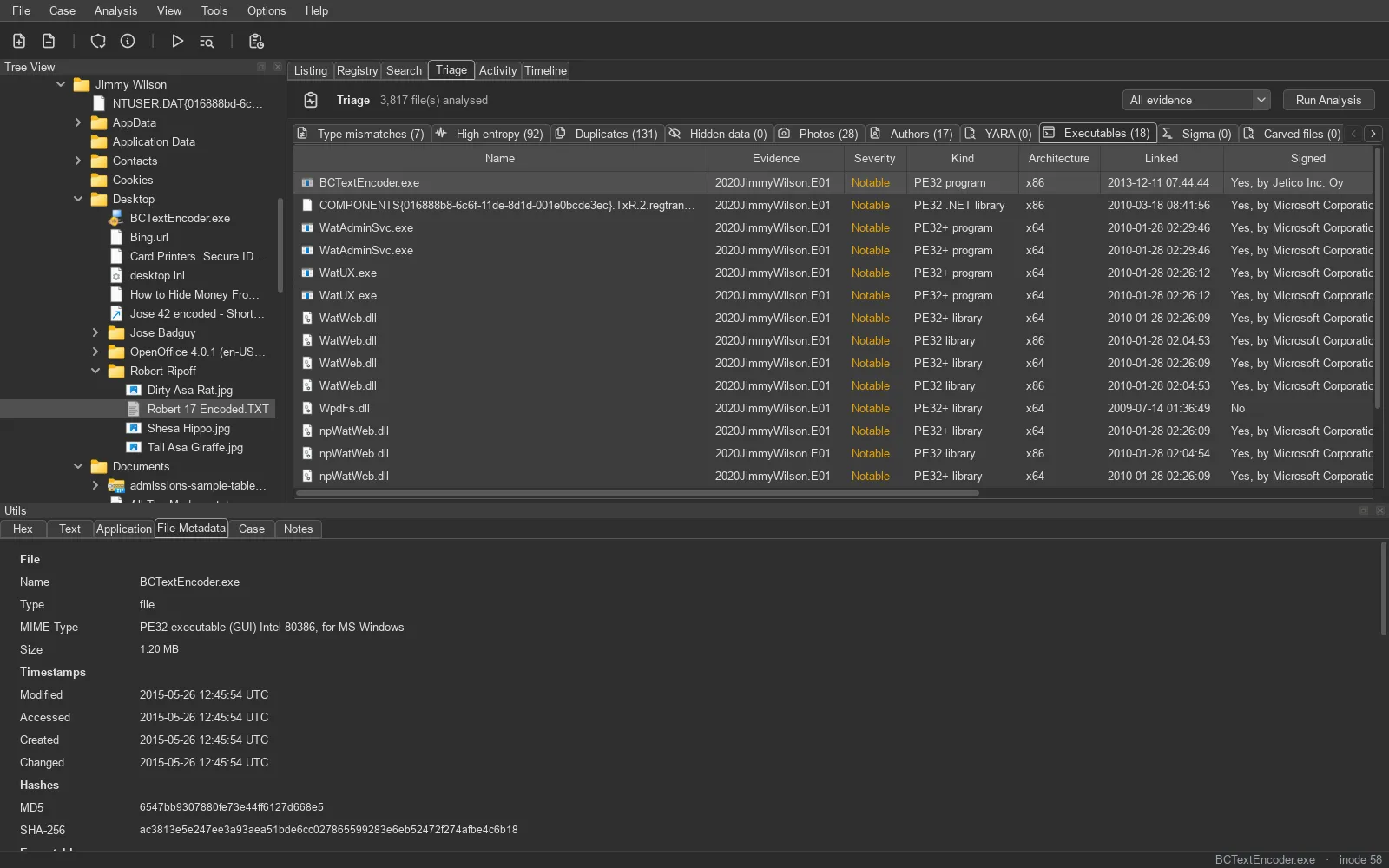
- The tree shows each device, its volumes and files, with Findings, Bookmarks and Activity nodes that appear once there is something in them.
- The listing shows a folder’s files with every timestamp, the hash-set flag and the triage columns. Switch to icon views for thumbnails.
- Triage lists what stands out across the case: mismatched types, high entropy, hidden data, photos, document authors, executables, carved files, indicators and detections.
Record and report
Section titled “Record and report”- Bookmark files, byte ranges in the hex view, or text selections; add notes to a file or to the case.
- Add to Report from the timeline, then build an HTML or PDF report.
- File ▸ Add Evidence adds another device to the case with the same steps; File ▸ Add Live Disk reads an attached disk read-only.
Every action that matters – evidence added, verified, removed, unlocked, exported, settings changed – is an audit line in the case’s Activity log.